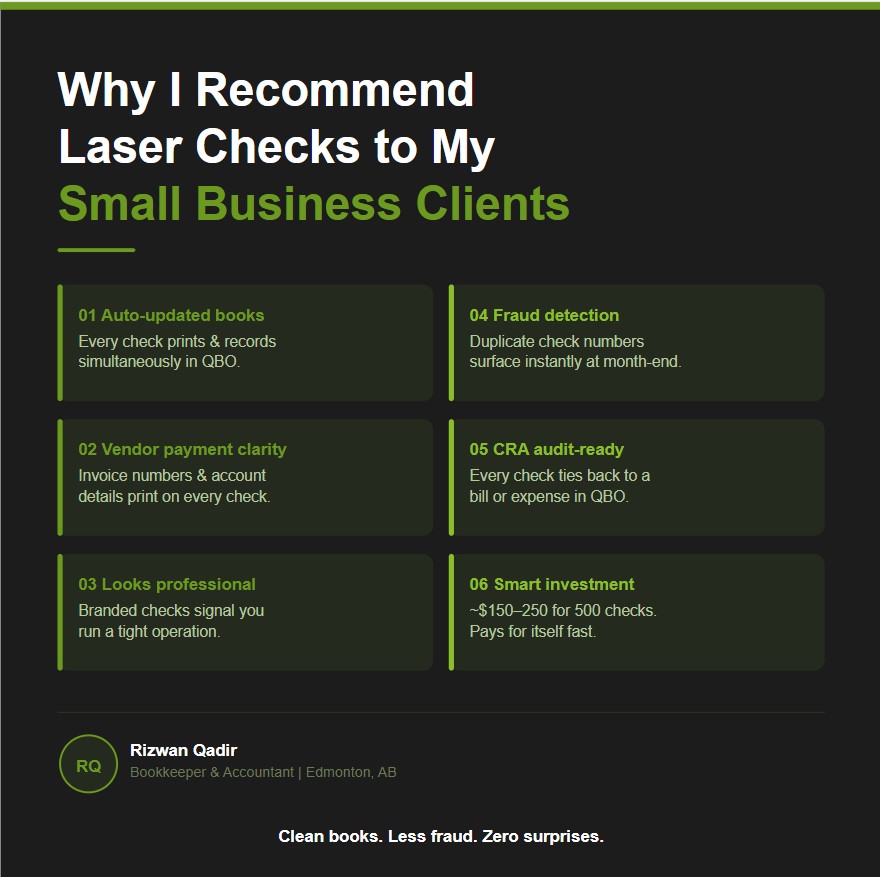
If you’re a small business owner who writes cheques by hand or prints them on plain paper, this post is for you. After working with dozens of small business clients across various industries, one of the most consistent recommendations I make is to switch to laser checks printed directly from QuickBooks Online. It sounds like a small operational detail, but the impact on your bookkeeping accuracy, fraud protection, and overall professionalism is anything but small.
Here’s a breakdown of every reason I stand behind this recommendation.
1. Your Books Update Automatically
One of the biggest sources of bookkeeping errors I encounter is the gap between when a payment is made and when it gets recorded. With handwritten checks, there’s always a risk that a payment gets forgotten, miscoded, or entered late — especially during busy periods.
When you print a laser check directly from QuickBooks Online, the transaction is recorded at the same time the check is generated. The vendor, the amount, the expense account, the date — it’s all captured in one step. No manual journal entries, no duplicate data entry, no scrambling at month-end trying to remember what a payment was for. Your books are always current, and your reconciliation process becomes dramatically smoother as a result.
2. Better Vendor Payment Organization
This is one of the more underappreciated benefits, and it’s something QBO handles particularly well.
When you have multiple outstanding bills from the same vendor, QBO allows you to group them into a single check payment. Rather than writing three separate checks for three invoices from the same supplier, you cut one check — and all the relevant invoice numbers appear directly on it. The vendor knows exactly what the payment covers, and you have a clean record on your end.
Taking it a step further: QBO lets you store a vendor’s account number directly in their profile, so it auto-populates on every bill you create for them. This one small habit prevents a surprisingly common and costly problem — payments sent to the wrong account, which can lead to delays, penalties, and strained vendor relationships. When the information is baked into the system, human error has nowhere to hide.
3. It Looks Professional
First impressions extend beyond your website and your pitch deck. When a vendor or supplier receives a payment from you, the check is part of that impression too.
A laser check printed with your business name, logo, and address looks polished and deliberate. It signals that you take your finances seriously and that you operate with systems and structure. Compare that to a handwritten check on a personal-style check book, and the difference in perception is real. For small business owners who are building long-term vendor relationships, these details matter more than most people realize.
4. Fraud Detection and Prevention
This one I have seen play out in real life — more than once — and it is the reason I feel most strongly about recommending laser checks.
Check fraud is more common than most business owners expect, and it takes forms you might not anticipate. Checks intercepted in the mail and altered before reaching the intended vendor. Checks that were legitimately deposited months ago, then presented again for a second deposit attempt. Both of these scenarios have crossed my desk with actual clients.
Laser checks come with built-in security features — microprinting, chemical wash detection, and void pantographs — that make tampering significantly harder and give your bank stronger grounds to recover a fraudulent payment. These features simply do not exist on plain paper or standard check stock.
But the reconciliation piece is equally powerful, and this is where QuickBooks Online gives you a real edge. Because every check is sequentially numbered and tracked in QBO, a duplicate deposit attempt does not stay hidden for long. If a check number that cleared eight or ten months ago suddenly reappears on your bank statement, it jumps out immediately during your month-end reconciliation. That is your signal to freeze the payment, contact your bank, and file a fraud report before the money is gone for good.
Clean, well-maintained books are not just good accounting practice — they are your first line of defence against financial fraud.
5. Your Records Are CRA Audit-Ready
Every laser check you print in QBO is tied directly to a bill, an expense record, and a vendor profile. If the Canada Revenue Agency ever audits your business, you can pull up any payment, trace it back to the original invoice, and show a complete, unbroken paper trail — all within a few clicks.
This is the kind of documentation that makes an audit far less stressful and far less costly. Businesses that rely on handwritten checks, loose receipts, and informal records are the ones that struggle when CRA comes knocking. The businesses with clean, system-driven records move through the process quickly and confidently.
6. The Investment Makes Financial Sense
Some business owners hesitate when they hear there’s a cost involved. Laser checks with your company name and banking information pre-printed typically run in the range of $150 to $250 for a box of 500, depending on the supplier and the level of customization.
When you consider the time saved on manual data entry, the errors prevented, the professional image conveyed, and — most importantly — the fraud it helps you catch and prevent, that cost is easy to justify. In many cases, catching even one fraudulent check attempt pays for years worth of check stock. It is one of the better low-cost, high-return investments available to a small business.
How to Print a Laser Check in QuickBooks Online
You may be convinced after reading all of the above, but wondering how to actually go about printing a laser check payment straight from QBO. The good news is that the process is straightforward once you have done it a couple of times. Here is a step-by-step walkthrough.
Step 1 — Load your laser checks into the printer
Before anything else, load your laser check stock into your printer tray. This way everything is ready to go when you reach the print step.
Step 2 — Record your vendor bills in QBO
Go into QBO and record the vendor bill or bills you are looking to pay. If you have multiple invoices from the same vendor and want them to appear on a single check, record all of them now. As best practice, make sure each bill is recorded accurately — do not skip details like GST on purchases, and attach the actual vendor invoice as a supporting document. Good records at the bill stage make everything downstream cleaner.
Step 3 — Pay the bills and select Print Later
Click the + New button in the top left corner of QBO, then select Pay Bills. Select the bills you want to pay — in this example, let’s say you have three invoices from the same vendor. Choose the payment date and the bank account you are paying from. At the top of the screen, check the option that says Print Later. Then click Save at the bottom right. The Pay Bills window will close.
Step 4 — Navigate to Print Checks
Click + New again from the top left, then select Print Checks. You will now see the payment you just created. Because you selected the three bills from the same vendor in the previous step, QBO has automatically clubbed them together into a single bill payment entry. Click on it to select it.
Step 5 — Preview and print
Follow the on-screen prompts. QBO will show you a preview of exactly how the check will look before it prints — review it carefully to make sure all the details are correct, the vendor name is right, the amount matches, and the invoice references are showing. Once you are satisfied, click Print.
That’s it. Your check prints, your books are updated, and your vendor has a clean, professional payment with all the information they need to match it to their invoices.
Final Thought
Laser checks are one of those small operational upgrades that quietly make a big difference across multiple areas of your business — accuracy, professionalism, fraud prevention, and audit readiness. If you are still writing checks by hand or skipping the check process altogether, I would encourage you to give this a try. The setup is simple, the cost is minimal, and the benefits compound over time.
If you have questions about setting up laser checks in QuickBooks Online or want help optimizing your accounts payable process, feel free to reach out.
Rizwan Qadir | Markham Bookkeeping | Edmonton, AB | markhambookkeeping.ca