
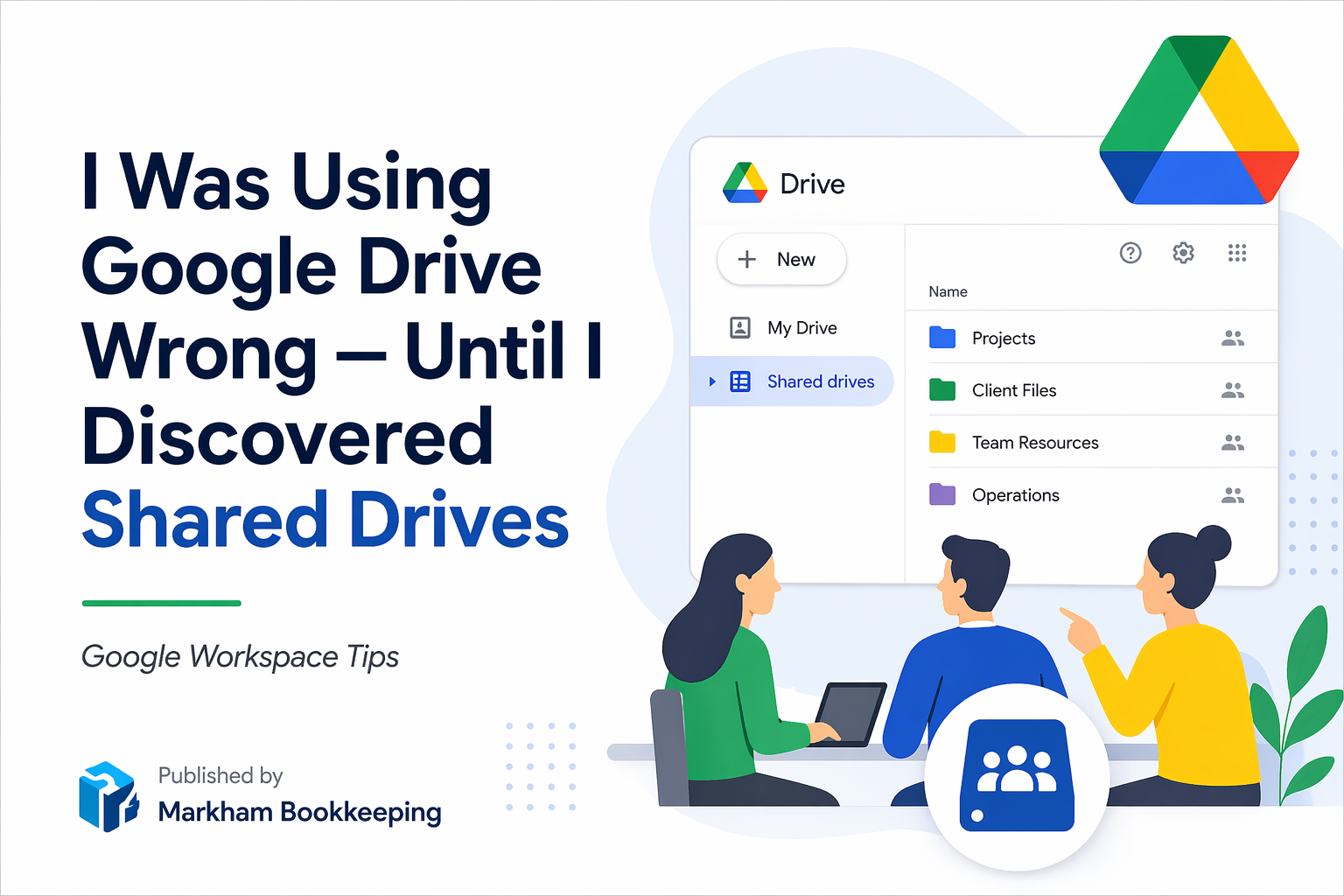
If you have ever shared files with teammates by uploading them to My Drive and hitting the Share button, you are not wrong — but you may be doing it the hard way.
Here is what most people do when they need to collaborate on files:
- Upload files or folders to My Drive
- Right-click and hit Share
- Add team members one by one
That method works, and it is perfectly valid — especially if you want to retain ownership of those files at all times. You stay in control, the files are yours, and you decide who gets access.
But it is not built for team collaboration. That is where Shared Drives comes in.
What Is a Shared Drive?
A Shared Drive is a dedicated space in Google Workspace where files belong to the organization — not to any individual. Anyone you add as a member can access the files based on the permission level you assign them, and the files stay put regardless of what happens to any individual’s account.
Why Shared Drives Makes More Sense for Teams
Files belong to the drive, not a person. If a team member leaves or their account is shut down, the files stay right where they are. No scramble to transfer ownership, no lost work.
Granular access control. You add members to the Shared Drive and assign each person the appropriate level — Viewer, Commenter, Contributor, Content Manager, or Manager. Everyone gets exactly the access they need.
Ideal for consultants and contractors. If you are working inside a client’s Google Workspace, a Shared Drive ensures the files remain with the company when your engagement ends. No awkward ownership transfers, no files stuck in your personal Drive.
Keeps your personal Drive clean. When you are collaborating on company files through My Drive, those files show up in your storage. A Shared Drive keeps company files separate from your personal ones, which makes organization much simpler.
Reduces inbox noise. When you own files stored in My Drive, Google notifies you when collaborators make changes. Files stored in a Shared Drive are owned by the drive itself, which removes that notification clutter from your inbox.
When to Use Each
| Scenario | Use |
|---|---|
| Personal files you want to control | My Drive + Share |
| Company-wide collaboration | Shared Drive |
| Consultant working with a client | Shared Drive (in client’s Workspace) |
| Files that outlast any one employee | Shared Drive |
Bottom Line
Shared Drives is how Google Workspace was actually designed for team collaboration. If your organization is still sharing everything through My Drive, it is worth spending 10 minutes setting up a Shared Drive and moving your active projects there.
Your inbox will thank you, and so will the colleague who eventually needs to find that file after you are gone.
Markham Bookkeeping helps small businesses and nonprofits stay organized — from their books to their workflows. Follow along for practical tips on Google Workspace, QuickBooks, Xero, and Canadian tax.